Wednesday, March 19, 2014

Reset Forgotten Windows 8 Password on Mac

Lost or forgot Windows 8 password on your Mac and don’t have a reset disk? How to reset Windows password from Mac? There are many Windows password recovery tools (such as Ophcrack, Offline NT Password & Register Editor) that could be used to crack Windows 8 password on a PC, but the major issue is that they are incompatible with Mac EFI Firmware.
mac-boot-into-windows

PCUnlocker is a recovery boot CD which can be used to remove Windows 8, 7, Vista and XP passwords on any PC and Mac. In this tutorial we’ll show you how to reset lost Windows 8 password on Mac using the PCUnlocker program.

How to Reset Windows 8 Password on Mac?

Step 1: Download the PCUnlocker program on your current computer. The downloaded file is a zip file. Decompress it and you’ll see an ISO image file named pcunlocker.iso, which contains a WinPE boot image along with the PCUnlocker application.

Step 2: Now you have to burn the ISO image to a blank CD. In Apple Mac, just open the Disk Utility (navigate to Finder > Applications > Utilities) and click on the Burn button, it allows you to burn ISO file. If your current computer is Windows machine, you can use the freeware ISO2Disc to make a bootable CD (or USB drive) from the ISO image.

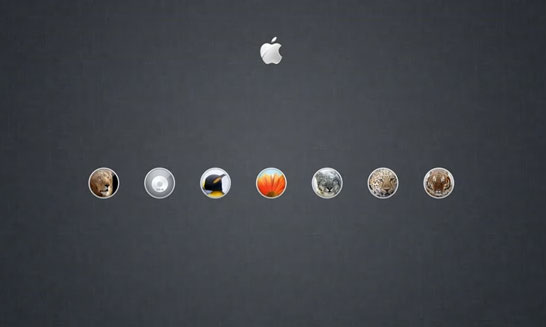
Step 3: The next step is to boot your Mac from the CD you’ve burned. Just shut down your Mac, then turn it back on. When you hear the Mac startup Chime, press and hold the Option/Alt key. You’ll be shown all the bootable drives on your Mac, including the CD drive. Use the arrow key to choose the CD-ROM and press the Enter key.

Step 4: Your Mac will load the Windows PE OS from the CD. Once the PCUnlocker launches, you could see a list of local accounts that are found in your Windows 8 SAM registry file. Just choose your desired account and click on Reset Password button. The program will reset your forgotten Windows 8 user password instantly.
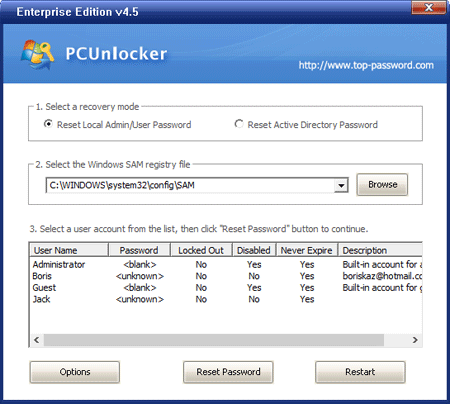


Step 5: Click on Restart button and remove the CD. Now you can boot your Mac into Windows 8 successfully without being asking for a password! Enjoy it!


Saturday, March 8, 2014

How to Remove Windows 8 / 8.1 Lock Screen

By default, Windows 8 shows Lock Screen at startup, which displays the date ad well as notifications. You have to click the screen before you can get to the logon screen. This seems like something that makes more sense on a tablet PC.


If you are using a desktop or laptop computer, you can disable the Lock Screen so the computer will boot up directly to logon screen to choose the user account to log in to Windows 8. Fortunately, you can disable the Lock Screen from Local Group Policy Editor.

How to Disable Windows 8 Lock Screen?

1. The first thing you need to do is to open the Local Group Policy Editor by pressing the Windows + R key combination to bring up a Run box, then type gpedit.msc and hit Enter.

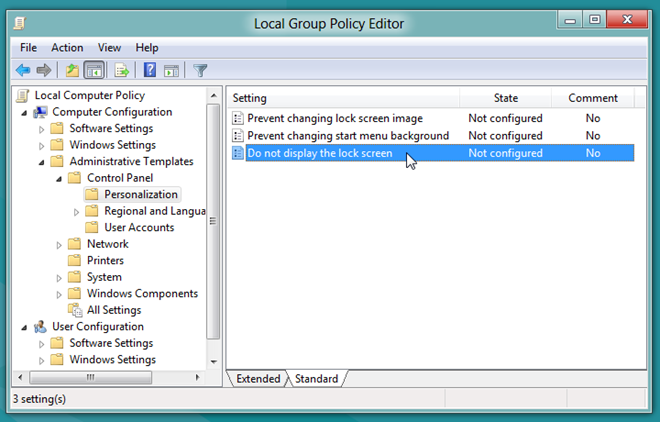
2. Now, expand Administrative Templates settings from Computer Configuration, and then navigate to Control Panel –> Personalization. In main window, you will find Do not display the lock screen policy.


3. Double-click this policy and tick Enabled checkbox. This will permanently disable Windows 8 Lock Screen. When disabled, users will see the logon screen when they log off or lock out Windows. Similarly, you will be taken to logon screen directly, instead of Lock Screen, at startup.

Friday, March 7, 2014

Forgot Windows 8 Password and No Reset Disk?

Many Windows users are familiar with password reset disk that could be used to reset a forgotten Windows password. But most of people tend to ignore the importance of creating a password reset disk in advance before losing their passwords. What to do if you forgot Windows 8 password and don't have a password reset disk?

Fortunately, there is a rescue CD called PCUnlocker which can help you reset lost password of both local administrator and Microsoft account in Windows 8. Basically PCUnlocker is a bootable ISO image that you have to write it on a CD or USB flash drive, which contains a WinPE operating system and a password recovery tool that allow you to have access to the Windows SAM file.

Here are step-by-step instructions on how to reset forgotten Windows 8 password without a reset disk:
  1. First, you need to use another computer to download the zipped ISO image of PCUnlocker. Extract the downloaded file locally and then burn the resulting .iso file to a CD-ROM (or USB flash drive) using ISO2Disc program.
  2. Insert the PCUnlocker Live CD into your locked Windows 8 computer and boot from it. You may have to change the computer's boot order in the BIOS in order to boot from the CD.
  3. If you boot from the CD successfully, the computer will load the contents of the CD drive, and finally start the PCUnlocker program. This program automatically detects your Windows installation and displays all Windows local accounts which are stored in the SAM registry hive.
  4. Choose a local account and click on "Reset Password" button. The program will reset your forgotten password instantly. If you're using a Microsoft account with your Windows 8 system, please choose the local account which is linked to your Microsoft account and then reset the password.
  5. Restart your computer and remove the PCUnlocker Live CD. You can then log back into Windows 8 successfully.
PCUnlocker is a professional Windows password recovery tools for both technicians and computer beginners. Comparing to password reset disk, it's much more powerful and every technicians should have it into their toolkit. Just with a PCUnlocker Live CD, you can reset forgotten Windows 8/7/Vista/XP password on any computer.

Thursday, March 6, 2014

3 Options to Recover Windows 8 Password

Forgot Windows 8 password and can't remember it? You can choose to reinstall Windows system if you don't have any important data stored on your computer, but often that is not the case. Re-installing Windows could be a tedious and time-consuming job and you also can't assure that you will not lose any important files. So is there a quick and easy way to solve this problem without reinstalling?

If you've created a Windows 8 password reset disk beforehand, you can use it to reset the forgotten password easily. But in case you haven't taken precautionary steps earlier and you forget the password, you can't create any type of reset disk without logging into Windows 8. Here, I am going to discuss most of practical methods to recover Windows 8 password if you have forgotten it.


Method 1: Recover Windows 8 Password in Safe Mode


It's the best way to recover Windows 8 password by using the built-in Administrator account. When you install Windows 8 for the first time, it asks you to create a new user account to use on the computer and once you create it, Windows setup automatically disables the Administrator account and you can't access it in normal mode. The next time you forget your user password, you can boot into Safe Mode and login with Administrator account and reset the user password.
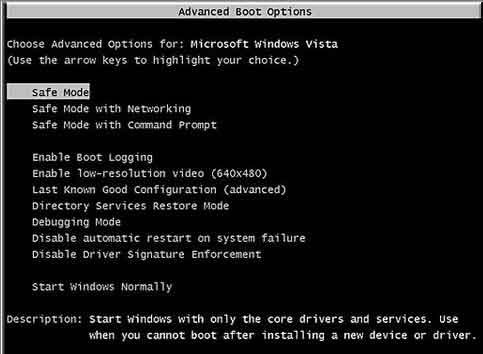
  1. Boot your computer and immediately press on the F8 key repeatedly until your computer displays the boot menu.
    Safe Mode
  2. With the arrow keys, choose Safe Mode and press the Enter key.
  3. On the home screen, click on Administrator. If you have no home screen, type Administrator and leave the password field as blank.
  4. Click on the Start menu in the bottom left corner, go in the Control Panel, then in User Accounts you can reset any user password easily.


Method 2: Login with Hotmail Password or PIN Code


It is well known that Windows 8 offers us multiple ways to log into Windows 8 like using traditionally text password, Hotmail password and PIN code. If you set your Hotmail account for Windows 8 login then you have a chance to recover Windows 8 password. Open your Hotmail email ID on another computer and then change its password with a new one. After changing the Hotmail password, try to login on Windows 8 using the new password and make sure that your Windows 8 is connected to internet during this time.

If you have used PIN code on Windows 8 previously then you can use it again to login on Windows 8.


Method 3: Recover Windows 8 Password by Third-party Software


PCUnlocker is the only software you need if you fail to recover Windows 8 password after using all the above methods. This is the ultimate Windows 8 password recovery solution with a 100% success rate.
  1. Download the self-extracting Zip file of PCUnlocker package.
  2. Uncompress the package, there is a ISO image: pcunlocker.iso. Burn it onto a CD/DVD or USB flash drive.
  3. Boot your locked computer from the newly burned CD/DVD or USB flash drive.
  4. Wait until the boot process is finished. When a window pops up with all your Windows accounts, select the target one to reset the password.Reset Windows 8 Password Easily

Forgot your Windows 8 password? With the methods above you can recover Windows 8 password easily. No need to reinstall the whole operating system and all other software installed on your computer.

Sunday, March 2, 2014

How to Crack Microsoft Account Password in Windows 8 and 8.1

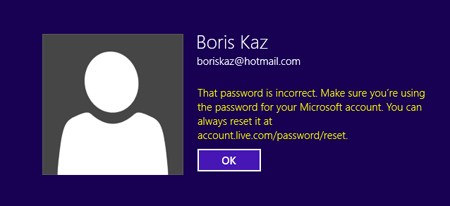
Microsoft account is a preferred sign-in option in Windows 8 and 8.1. But if you forgot your password and can't also sign in to your Windows Live account online from Microsoft's website, you'll lose any access to all data and files on your computer. Fortunately there is an easy way to crack Windows 8 Microsoft account.


The first time you set up a Microsoft account in Windows 8, the system will automatically store your password locally and create a local account that is associated with your Microsoft account. So if you forgot your Microsoft account and can't log in Windows 8, you can use a software called PCUnlocker to replace the locally cached password hashes, so you can then sign into Windows 8 with a new password.

In this tutorial I'll guide you through the steps of cracking Microsoft account password with PCUnlocker, which can be used to reset forgotten passwords for both local account and Microsoft account in Windows 8 and 8.1.

How to Crack Microsoft Account Password in Windows 8 and 8.1?

Before getting started, you need to use an alternate PC to download the PCUnlocker program. The downloaded file is a self-extracting archive which contains a bootable ISO image. Burn the ISO image to a CD (or USB drive) using ISO2Disc program.

Afterwards, you boot your locked Windows 8 PC from that CD to crack Microsoft account password. To do so, make sure you change the boot order in the BIOS to try to boot from the CD first.

Once your computer loads from the CD, the PCUnlocker program will start automatically. It shows you a list of local accounts available in your Windows 8 system.


There should be a local account that is linked to your Microsoft account. Choose that account and click on "Reset Password" button. Confirm your password reset operation, and the program will assign a new password to your Microsoft account.

Now you've successfully cracked Windows 8 Microsoft account password. Take out the CD and reboot your computer. When you reach the Windows 8 login screen, you can sign into your Microsoft account with the new password: Password123.

Saturday, March 1, 2014

How to Reset Windows 8 Admin Password without Admin Rights

There is only one administrator account on your Windows 8 laptop but you forgot the password? How can I change the password without administrator rights? With PCUnlocker Live CD you can regain your computer's administrator privileges, even if you don't have the password. To get started, you need to make a PCUnlocker Live CD/USB drive on an alternate PC. Afterwards, you can then use it to boot off your locked computer and change Windows administrator password easily. Here are step-by-step instructions.


Part 1: Create A PCUnlocker Live CD/USB Drive

  1. Click here to download and save the PCUnlocker self-extracting Zip file to a folder on your hard drive, then extract the ISO image file: pcunlocker.iso from it.
  2. Insert a blank CD or USB flash drive into your computer. Download and install the freeware ISO2Disc.
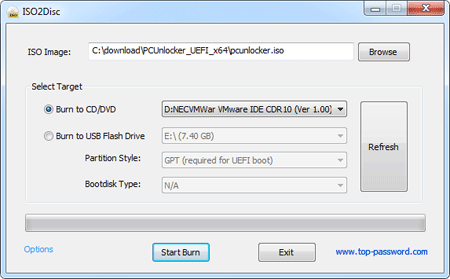
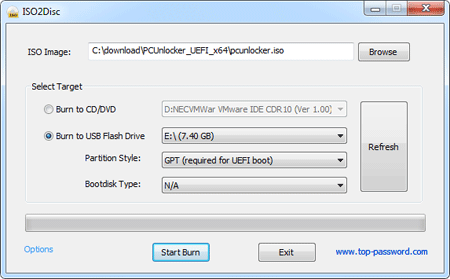
  3. Start the ISO2Disc program. Click the Browse button to locate your ISO image file, then click the Start Burn button to burn the ISO image to your CD or USB flash drive. Burn ISO Image to CD/DVD or USB flash drive


Part 2: Boot Your Locked PC from CD/USB Drive

  1. Connect the burned CD or USB drive to the computer that you're trying to gain admin access. When it is powered on, check the boot-screen for setup key (i.e. DELETE key, F8 key, F2 key) to enter BIOS Setup Utility.
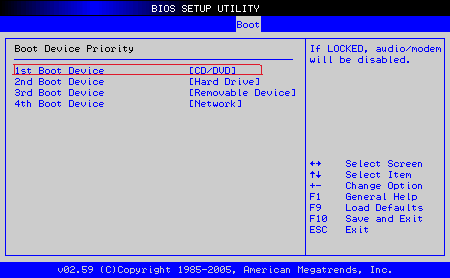
  2. Use the arrow keys to select the BOOT tab, then change the Boot Device Priority: Set 1st Boot Device to CDROM if you just created a bootable CD or DVD, or set 1st Boot Device to Removable Device if a bootable USB flash drive was created. BIOS Setting
  3. Press F10 to save your changes. Now your computer will restart and then boot from PCUnlocker Live CD/USB drive. If you still can't get your computer to boot from the CD/USB drive, please refer to this boot up troubleshooting guide.


Part 3: Change Windows 8 Administrator Password

  1. Shortly after the computer boots up from the CD/USB drive, you'll see the PCUnlocker screen.Reset Windows Password
  2. The program will show a list of local accounts that are stored in Windows SAM registry hive. Select the administrator account and click the Reset Password button to remove your forgotten password.
  3. Click the Restart button to reboot the computer and remove the CD or USB drive. You can then log into Windows 8 administrator account without a password.

PCUnlocker can also be used to change administrator password on Windows Server 2012/2008/2003/2000. I hope this guide helps you out if you ever forget your administrator password and need to regain administrator privileges.

Thursday, February 27, 2014

Reset Forgotten Windows 8 Administrator Password with UEFI Bootable USB Drive

Forgot the administrator password on Windows 8 computer with UEFI BIOS? Most of password recovery bootdisks won't boot normally any more when dealing with UEFI BIOS. PCUnlocker should be the unique bootdisk which is fully compatible with UEFI/GPT computer. It enables you to reset lost Windows 8 password with a UEFI bootable CD or USB drive.

There are three editions of PCUnlocker: Standard, Pro and Enterprise. But only the Enterprise edition supports UEFI booting. In this tutorial we're going to show you how to reset lost Windows 8 UEFI password using PCUnlocker Enterprise.


Part 1: Create A UEFI Bootable CD or USB Drive


After purchasing the full version of PCUnlocker Enterprise, you'll get the download link of PCUnlocker_UEFI_x64.zip. Unzip it and you'll get the UEFI bootable ISO image of PCUnlocker. Burn the ISO image to a blank CD or USB flash drive using ISO2Disc.
Create A UEFI Bootable CD or USB Drive


Part 2: Boot Your Locked PC from CD/USB Drive


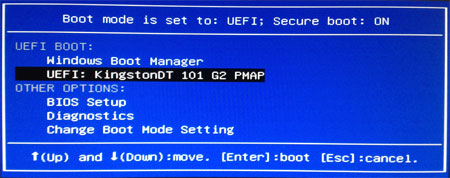
Connect the CD or USB drive to your locked Windows 8 UEFI computer. Turn on the computer and press a key like F12 to bring up the Boot Menu. The exact key depends on your computer. If you can't find a way to access the Boot Menu, you can either head over to BIOS for changing the boot order: set CD or USB drive as the first boot option.
UEFI Boot Menu


Part 3: Windows 8 UEFI Password Reset


Now the computer will boot from the CD/USB drive. After a while, you'll see the PCUnlocker program itself, which automatically searches your Windows 8 SAM registry file and locates all Windows 8 user accounts existing on your computer.
Windows 8 UEFI Password Reset

Choose a user account and then click on "Reset Password" button. The program will remove / reset your lost Windows 8 password, as well as unlocking the selected user account in case it is disabled, locked out or expired.

Remove the Live CD/USB drive and restart your computer. Now you can log back into your Windows 8 UEFI computer without a password!